
Why regular backups matter in a digital world
How often to back up: knowing the best times
Backing up Windows Server, and the key points
Using support services, and the important parameters in backing up
In an age when information and communications technology is advancing at a remarkable pace, data has become one of the most valuable assets any person, company or organisation has. From personal and family information to commercial and financial data, all of it is exposed to threats such as cyber attacks, hardware failure, human error and even natural disaster. Losing data can have irreparable consequences: business grinding to a halt, damage to a reputation, even bankruptcy. In these circumstances, having an orderly and well-founded strategy for taking backups is not a choice but a vital necessity.
Why regular backups matter in a digital world
Data today is the beating heart of every business and even of our personal lives. The importance of regular backups may not be apparent until something goes wrong, but you need lose your important information only once to realise how vital a backup is. Why regular backups matter can be summed up around a few fundamental points:
1. Protection against human error and hardware failure
Even the most professional users may delete a file by mistake, or change a setting in a way that loses data. No hardware lasts for ever, either, and it may fail for any number of reasons: power fluctuations, wear or physical damage.
2. Standing up to cyber attacks and ransomware
Ransomware attacks have increased sharply in recent years. Hackers encrypt users' data and demand a ransom. If you have a sound, up-to-date backup, you can restore your information without worry and pay the attackers nothing.
3. Business continuity
For many companies and organisations, losing data means work stopping and heavy financial loss. Regular backups ensure that if anything happens, you can return to normal operation in the shortest possible time.
4. Peace of mind
Knowing that you always have a sound, up-to-date copy of your vital information brings a rare peace of mind and frees you from worrying about the unexpected.
How often to back up: knowing the best times
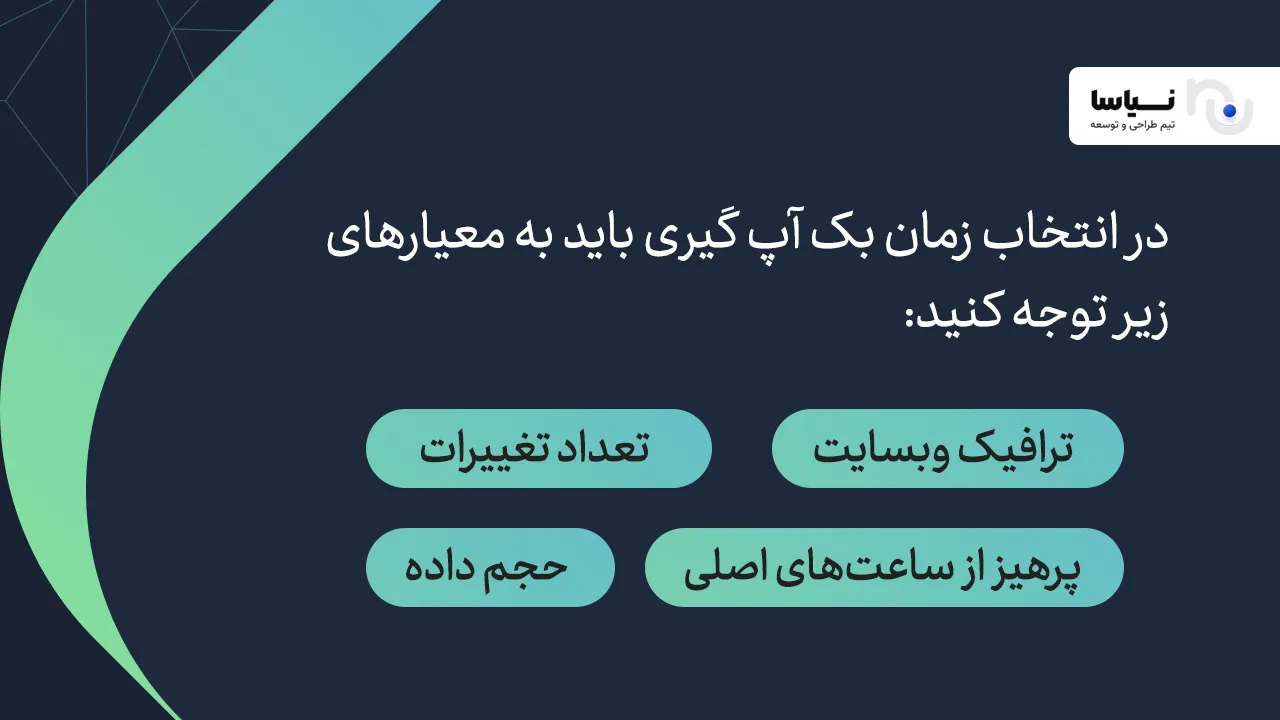
One of the most important questions about backups is how often they should be taken. The answer depends on a number of factors and can differ for each person or organisation. Below we look at the most important parameters in determining a backup schedule:
1. How much the data changes
If your data is constantly changing (as on online shops or in databases), you need to back up at shorter intervals. If your information rarely changes, by contrast, you can choose longer intervals.
2. How important the data is
Vital, irreplaceable data should be backed up with greater care and regularity. Financial information or legal documents, for instance, should be backed up daily or even hourly.
3. The volume of data and your technical resources
A large volume of data can make a backup slow. In that case you can use incremental or differential backups, which store only what has changed since the last backup and are faster and more efficient.
4. Quiet hours
To avoid slowing things down and putting a load on the server or the network, it is better to schedule backups for quiet hours (the middle of the night or outside working hours).
5. Organisational policy and legal requirements
Some companies or industries are obliged by particular laws and standards to keep backups at set intervals.
A practical recommendation:
For home users: a weekly or monthly backup is enough, unless you have very important data.
For small businesses: a daily backup, or one every other day, is recommended.
For large organisations and high-traffic sites: an hourly or even real-time backup is the best option.
Backing up Windows Server, and the key points
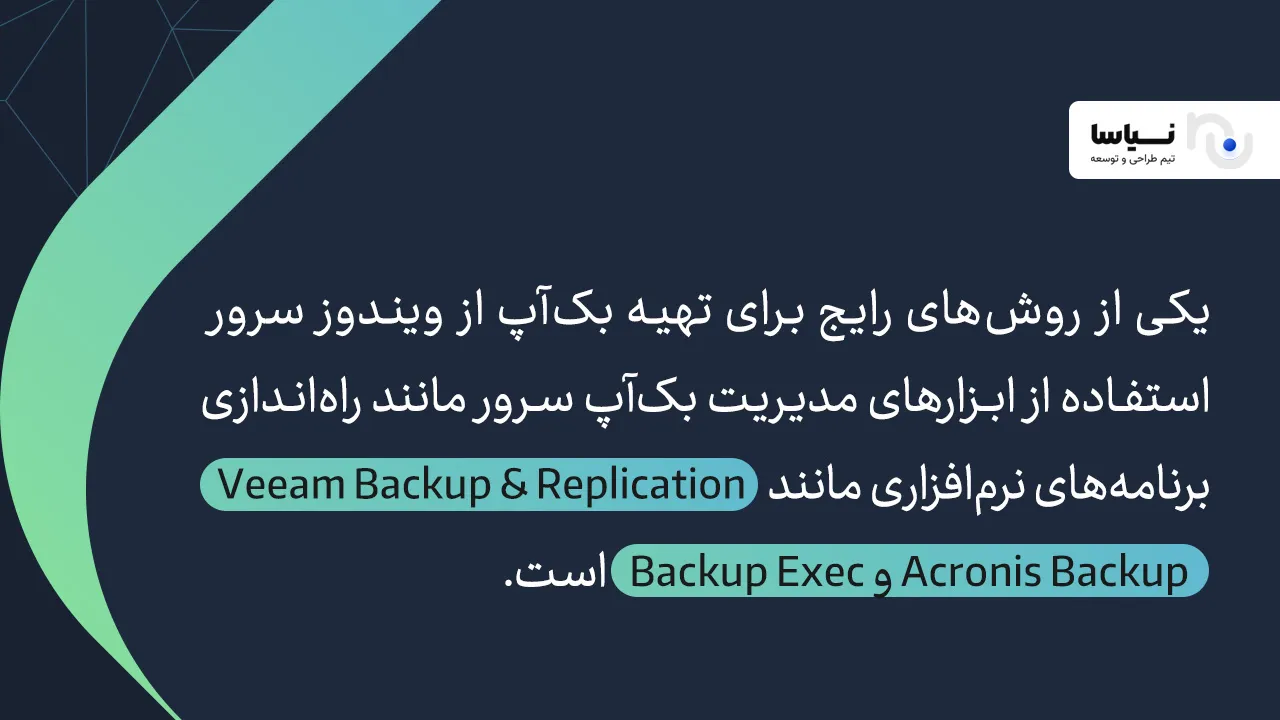
Windows Server is one of the most widely used operating systems for managing networks and servers, and backing it up properly matters particularly. In this section we review the steps and the key points in backing up Windows Server:
1. Choosing the kind of backup
Full backup: a complete copy is taken of all the system's data and settings. This kind of backup is slow, but restoring it is simpler.
Incremental backup: only the changes since the last backup are stored. It is faster and takes less space.
Differential backup: the changes since the last full backup are stored.
2. Scheduling the backup
Windows Server provides built-in tools such as Windows Server Backup for scheduling. It is recommended that you plan backups to run automatically and regularly, so as to reduce the risk of forgetting or of error.
3. Where the backup is stored
Local storage: the backup is stored on a hard disk or a secondary server. This is fast, but there is a risk of losing the data if something happens (a fire or a theft).
Offsite storage: moving the backup to the cloud or to servers away from the main site provides greater security.
Using separate media: an external drive, magnetic tape or even DVDs for keeping vital backups.
4. Restore testing
Taking a backup is not enough on its own; you have to test the restore process periodically to be sure that when they are needed, the backups are sound and can be restored.
5. Encrypting and securing the backups
Make sure your backups are encrypted, so that your information stays protected if they are stolen or breached.
Using support services, and the important parameters in backing up
In recent years, using professional backup services and cloud services has become very common. These services offer a range of capabilities that make backing up simpler and more dependable. To choose and use them well, though, you should pay attention to a few key parameters:
1. The 3-2-1 rule of backups
3 copies of the data: one original and two backups.
2 different media: one copy on a hard disk and one in the cloud, for instance.
1 copy offsite: to guard against events such as fire or theft.
2. Security and encryption
Make sure the service you use supports encrypting data both in transit and at rest.
3. Quick, easy restoration
In a crisis, how quickly data can be restored matters a great deal. The service should make it possible to restore information partly or wholly in the shortest possible time.
4. Compatibility with your systems and software
Check that the backup service is compatible with your operating system, your software and the structure of your data.
5. Technical support and after-sales service
If something goes wrong, having access to a professional support team matters a great deal.

Using host support services and how they differ from doing it by hand
One of the most common ways of backing up is to use the services hosting companies offer. These services usually take automatic, regular backups of your website or server. Below we look at the key differences between this approach and backing up by hand:
The advantages of using a host's support services
It is automatic: backups are taken regularly, with no need for you to be involved.
Greater security: backups are usually kept on separate, secure servers.
Simple management: control panels make it easy to see, download and restore backups.
Less risk of human error: because the process is automatic, the chance of forgetting or making a mistake falls.
Quick restoration: if something goes wrong, you can restore your information in a few clicks.
Drawbacks and limits
Dependence on the provider: if the relationship ends or the hosting company runs into difficulty, access to the backups may be limited.
Cost: some services charge separately for regular backups.
A limited choice of versions: you may have access only to a limited number of recent backups.
How it differs from backing up by hand
Backing up by hand means carrying out the process regularly and carefully yourself. That takes more technical knowledge and more time, and the chance of human error is higher. The backups are also usually stored on the same server or on local media, which are less secure.
Conclusion
In the end, regular, well-founded backups are the most important step in protecting data and guaranteeing that digital work can continue. Choosing the right schedule, using professional tools and services, observing the principles of security and testing the restore process periodically are all measures to be taken seriously. It makes no difference whether you are a home user or the manager of a large organisation; backups matter equally to everyone, and neglecting them can have irreparable consequences.
With careful planning, the right approach and adherence to the principles of backing up, you can protect your digital assets with an easy mind and be prepared and safe against any incident or threat. Your digital future depends on the decisions you take about backups today; so act today and make your information secure.